> ## Documentation Index
> Fetch the complete documentation index at: https://docs.greip.io/llms.txt
> Use this file to discover all available pages before exploring further.
# Overview
> Set-up your own custom rules that will be applied when you use the API
Custom rules allow you to define specific conditions and actions to be executed based on incoming events or data. This guide provides an overview of custom rules, their benefits, and how to create and manage them in Greip.
## Adding custom rules
To add a custom rule, follow these steps:
Go to the [Custom Rules page](https://dashboard.greip.io/custom-rules) from
the account dashboard.
Click on the 'Add Rule' button from the top right corner of the page to
create a new custom rule.
Give it a title that describes the rule. This will help you identify the
rule later, and when the custom rule is applied to an API request, it will
be returned in the API response along with the rule ID.
Choose the endpoint then define the conditions and action for the custom
rule.
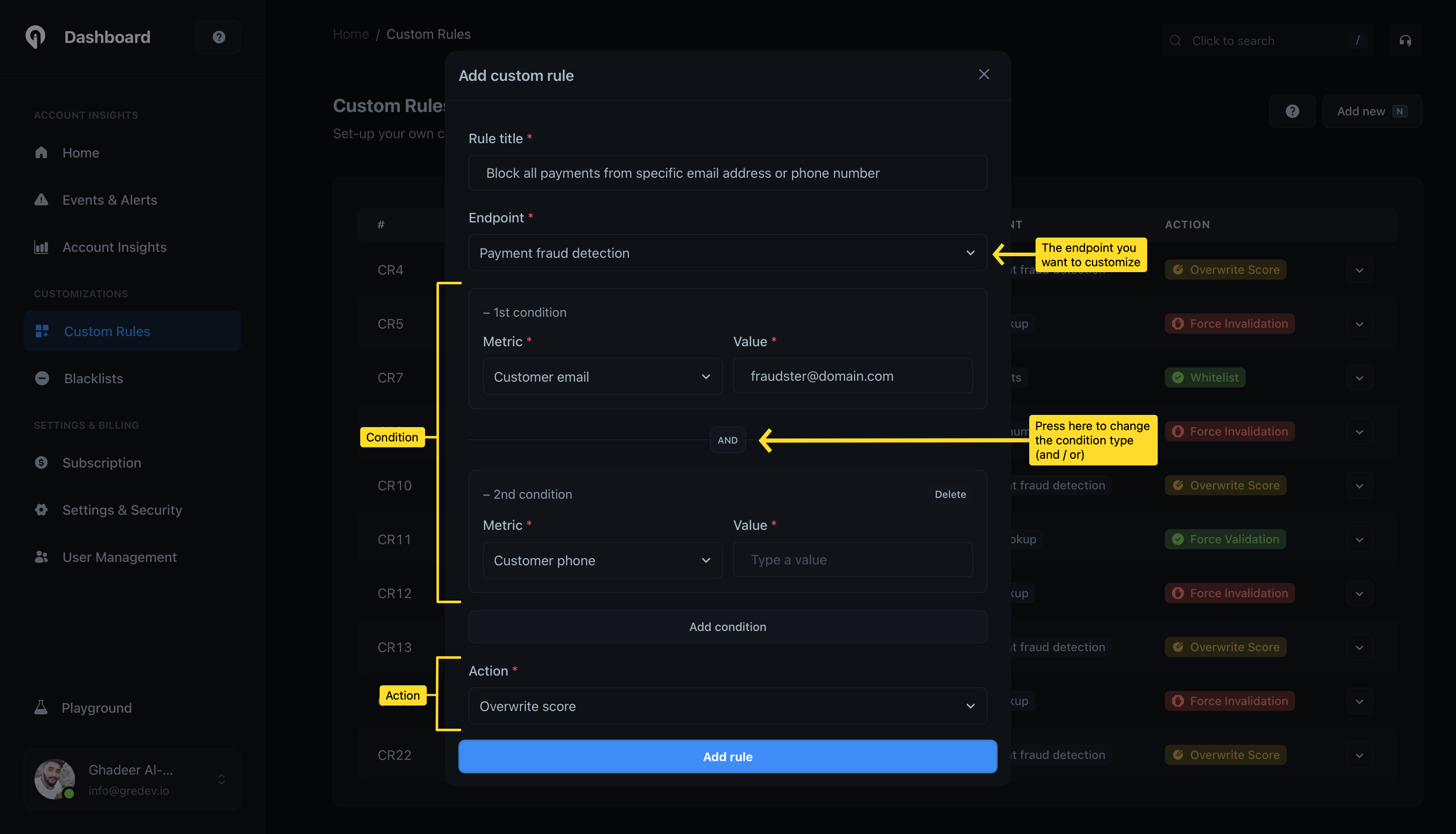 Click the "Add rule" button to save the custom rule.
Once you have added a custom rule, it will be considered immediately when you use the API. If the conditions are met, the action will be executed and the custom rule will be returned in the API response.
## Sample response with custom rule
When a custom rule is applied to an API request, the custom rule ID will be returned in the API response. Here is an example of a response with a custom rule:
```json theme={null}
{
"status": "success",
"data": {
"sample_property": "sample_value",
"another_property": "another_value",
"custom_rules_applied": {
"total": 1,
"rules": [
{
"id": "CR104",
"message": "Block all payments from specific email address or phone number"
}
]
}
}
}
```
## Definitions of custom rule actions
Custom rules can be defined with the following actions:
This includes both the `IP geolocation` and `IP lookup` endpoints.
* **Add to blacklist**: Marks the IP address as blacklisted. It adds a `blacklisted` property with the value of `true` under the `security` object in the API response.
* **Add to whitelist**: Marks the IP address as whitelisted. It adds a `blacklisted` property with the value of `false` under the `security` object in the API response.
* **Add to blacklist**: Marks the IP address as blacklisted. It adds a `blacklisted` property with the value of `true` under the `threats` object in the API response.
* **Add to whitelist**: Marks the IP address as whitelisted. It adds a `blacklisted` property with the value of `false` under the `threats` object in the API response.
* **Overwrite score**: Overwrites the `score` property value with the speicifed score value in the custom rule.
* **Overwrite score**: Overwrites the `score` property value with the speicifed score value in the custom rule.
* **Mark as valid**: Marks the email address as valid. It overwrites the `isValid` property value to `true`.
* **Mark as invalid**: Marks the email address as invalid. It overwrites the `isValid` property value to `false`.
* **Mark as valid**: Marks the phone number as valid. It overwrites the `isValid` property value to `true`.
* **Mark as invalid**: Marks the phone number as invalid. It overwrites the `isValid` property value to `false`.
* **Mark as valid**: Marks the BIN as valid. It overwrites the `isValid` property value to `true`.
* **Mark as invalid**: Marks the BIN as invalid. It overwrites the `isValid` property value to `false`.
* **Mark as valid**: Marks the IBAN as valid. It overwrites the `isValid` property value to `true`.
* **Mark as invalid**: Marks the IBAN as invalid. It overwrites the `isValid` property value to `false`.
Click the "Add rule" button to save the custom rule.
Once you have added a custom rule, it will be considered immediately when you use the API. If the conditions are met, the action will be executed and the custom rule will be returned in the API response.
## Sample response with custom rule
When a custom rule is applied to an API request, the custom rule ID will be returned in the API response. Here is an example of a response with a custom rule:
```json theme={null}
{
"status": "success",
"data": {
"sample_property": "sample_value",
"another_property": "another_value",
"custom_rules_applied": {
"total": 1,
"rules": [
{
"id": "CR104",
"message": "Block all payments from specific email address or phone number"
}
]
}
}
}
```
## Definitions of custom rule actions
Custom rules can be defined with the following actions:
This includes both the `IP geolocation` and `IP lookup` endpoints.
* **Add to blacklist**: Marks the IP address as blacklisted. It adds a `blacklisted` property with the value of `true` under the `security` object in the API response.
* **Add to whitelist**: Marks the IP address as whitelisted. It adds a `blacklisted` property with the value of `false` under the `security` object in the API response.
* **Add to blacklist**: Marks the IP address as blacklisted. It adds a `blacklisted` property with the value of `true` under the `threats` object in the API response.
* **Add to whitelist**: Marks the IP address as whitelisted. It adds a `blacklisted` property with the value of `false` under the `threats` object in the API response.
* **Overwrite score**: Overwrites the `score` property value with the speicifed score value in the custom rule.
* **Overwrite score**: Overwrites the `score` property value with the speicifed score value in the custom rule.
* **Mark as valid**: Marks the email address as valid. It overwrites the `isValid` property value to `true`.
* **Mark as invalid**: Marks the email address as invalid. It overwrites the `isValid` property value to `false`.
* **Mark as valid**: Marks the phone number as valid. It overwrites the `isValid` property value to `true`.
* **Mark as invalid**: Marks the phone number as invalid. It overwrites the `isValid` property value to `false`.
* **Mark as valid**: Marks the BIN as valid. It overwrites the `isValid` property value to `true`.
* **Mark as invalid**: Marks the BIN as invalid. It overwrites the `isValid` property value to `false`.
* **Mark as valid**: Marks the IBAN as valid. It overwrites the `isValid` property value to `true`.
* **Mark as invalid**: Marks the IBAN as invalid. It overwrites the `isValid` property value to `false`.