> ## Documentation Index
> Fetch the complete documentation index at: https://docs.greip.io/llms.txt
> Use this file to discover all available pages before exploring further.
# Integrate Greip with Slack
> Integrate Greip with Slack to receive real-time alerts and notifications
Slack is a collaboration hub that connects your work with the people you work with. Greip's Slack integration allows you to receive real-time alerts and notifications directly in your Slack workspace.
## Prerequisites
Before you can integrate Greip with Slack, you need to have the following:
* A Greip account with an active subscription
* A Slack account with the necessary permissions to install apps
## Installation
To install the Greip Slack app, follow these steps:
Go to the [Account Settings page](https://dashboard.greip.io/settings) from
the account dashboard.
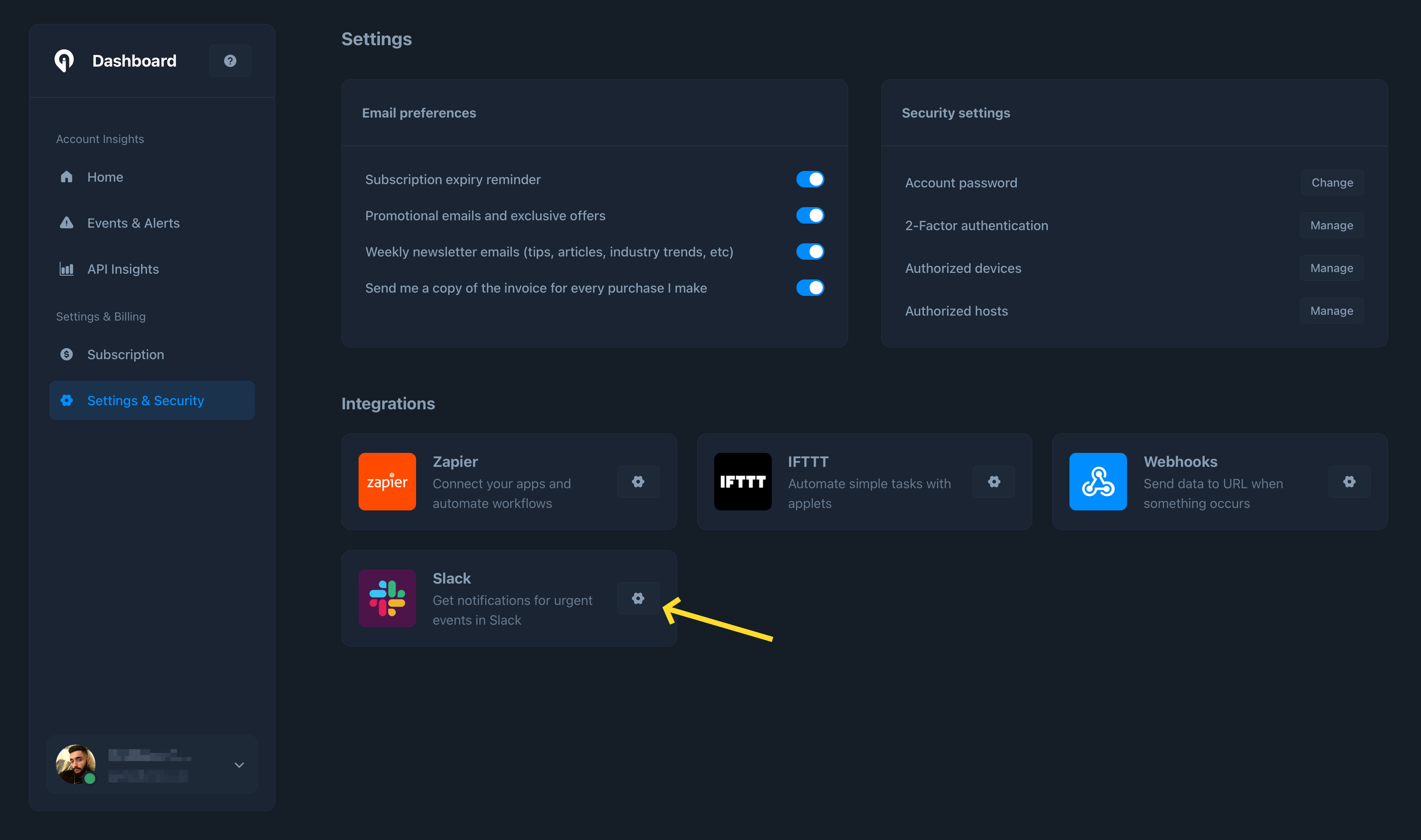
Under the 'Integrations' section, click on the configuration button on the
right side of the "Slack" app as shown below:
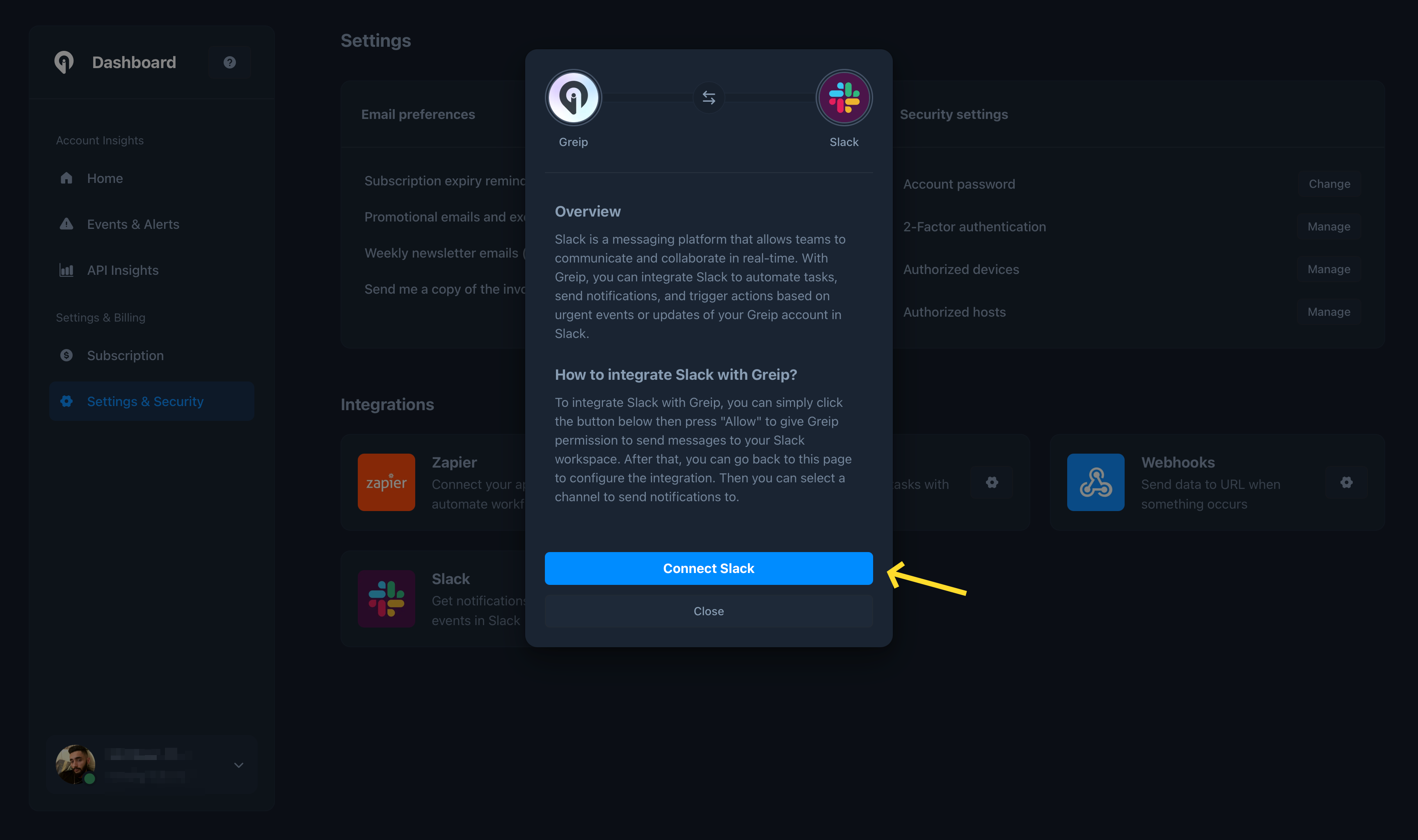
 Click on the 'Connect Slack' button to start the installation process as shown below:
 You will be redirected to the Slack authorization page. Click on the 'Allow' button to grant the necessary permissions to the Greip app.
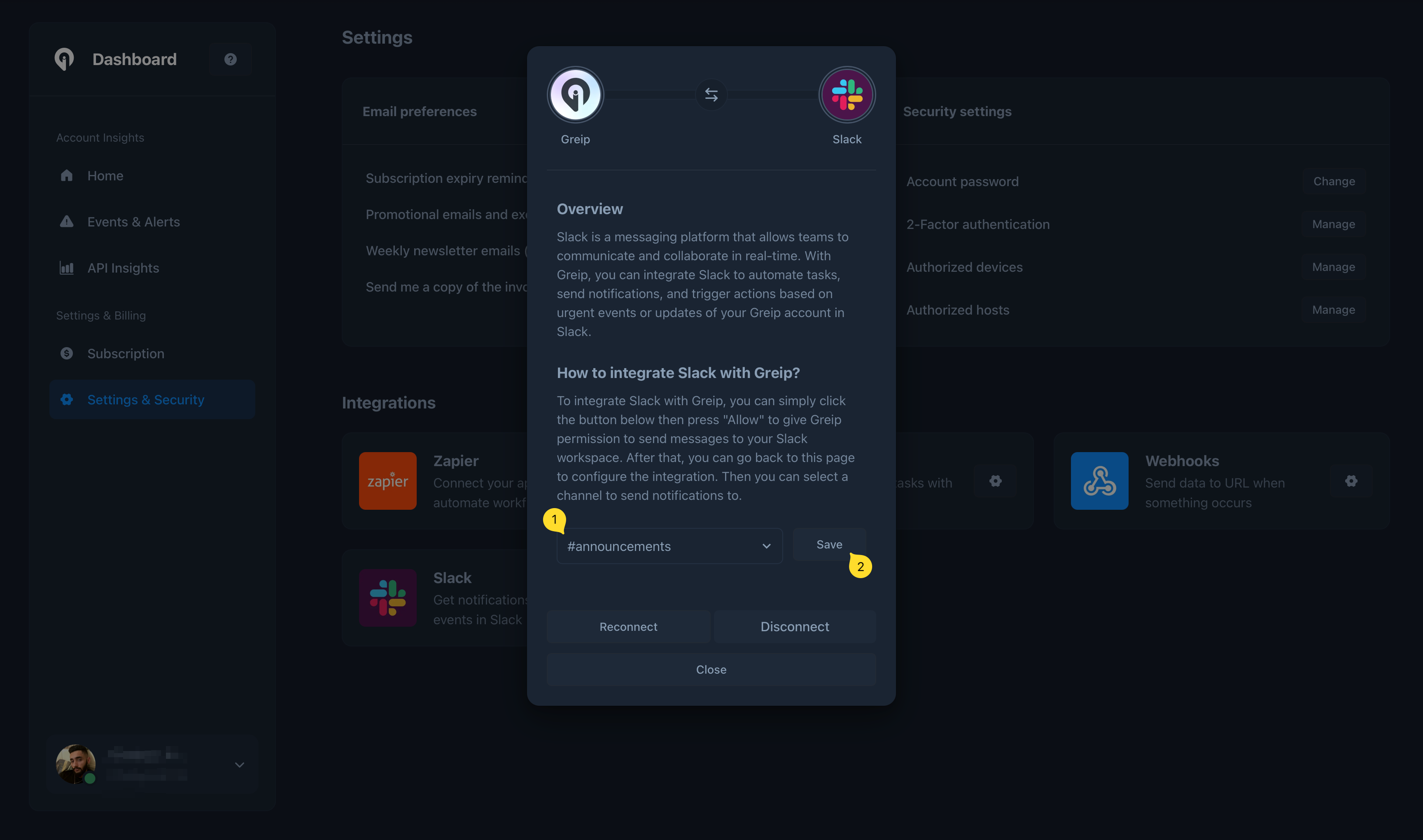
Once the installation is complete, you will be redirected back to the Greip dashboard. All you need to do is to choose a Slack channel from the dropdown menu and hit the 'Save' button as shown below:
You will be redirected to the Slack authorization page. Click on the 'Allow' button to grant the necessary permissions to the Greip app.
Once the installation is complete, you will be redirected back to the Greip dashboard. All you need to do is to choose a Slack channel from the dropdown menu and hit the 'Save' button as shown below:
 ## Notifications and Alerts
Once the installation is complete, you will start receiving real-time alerts and notifications in your Slack workspace. Notifications are sent for the following events:
* New suspicious IP address is detected
* New profane content is detected
* New invalid BIN/IIN is detected
* New high-risk email address is detected
* New high-risk phone number is detected
* New high-risk/invalid IBAN is detected
* New fraudulent payment is detected
* When your account 2FA is enabled/disabled
* When your account password is changed
* New authorised host is added
* When an unauthorised login attempt is detected
## Uninstallation
To uninstall the Greip Slack app, follow these steps:
Go to the [Account Settings page](https://dashboard.greip.io/settings) from
the account dashboard.
Under the 'Integrations' section, click on the configuration button on the
right side of the "Slack" app.
Click on the 'Disconnect Slack' button to remove the integration. This will
stop all notifications and alerts from being sent to your Slack workspace.
Delete the Greip app from your Slack workspace.
## Notifications and Alerts
Once the installation is complete, you will start receiving real-time alerts and notifications in your Slack workspace. Notifications are sent for the following events:
* New suspicious IP address is detected
* New profane content is detected
* New invalid BIN/IIN is detected
* New high-risk email address is detected
* New high-risk phone number is detected
* New high-risk/invalid IBAN is detected
* New fraudulent payment is detected
* When your account 2FA is enabled/disabled
* When your account password is changed
* New authorised host is added
* When an unauthorised login attempt is detected
## Uninstallation
To uninstall the Greip Slack app, follow these steps:
Go to the [Account Settings page](https://dashboard.greip.io/settings) from
the account dashboard.
Under the 'Integrations' section, click on the configuration button on the
right side of the "Slack" app.
Click on the 'Disconnect Slack' button to remove the integration. This will
stop all notifications and alerts from being sent to your Slack workspace.
Delete the Greip app from your Slack workspace.